Your Aadhaar card is an important document in India. It is used to prove who you are and where you live. You need it to open a bank account or to file your income tax returns. The Aadhaar card helps you get services and government benefits. So it is very important that the information on your Aadhaar card is correct.
If you move to a house, or if you find a mistake in your name, or if your information is old, you need to update your Aadhaar card.
The Unique Identification Authority of India has made it easy to update your Aadhaar card online. You can do this from home. You do not need to go to an enrollment center. This guide will show you how to update your Aadhaar card. It will explain each step clearly. You can update your Aadhaar card details from home. You can do it safely.
Important Prerequisite: The Linked Mobile Number
Before initiating any digital modifications on the UIDAI portal, you must meet one core operational requirement: your active mobile number must be linked to your card.
- Why it is mandatory: The portal relies on a secure One-Time Password (OTP) to authenticate your identity. If your phone number has changed or was never linked, you cannot use online services.
- The Fix: If your mobile number is not registered, you must make a one-time visit to a nearby Aadhaar Seva Kendra to link your current phone number. Once that is linked, all future demographic updates can be handled online.
What Can You Update Online vs. Offline?
The UIDAI allows specific demographic corrections online through the Self-Service Update Portal (SSUP), while biometric corrections require physical validation.
+--------------------------------+----------------------------+----------------------------------------+
| Detail Category                | Can Be Updated Online?     | Required Supporting Documents          |
+--------------------------------+----------------------------+----------------------------------------+
| Residential Address            | Yes (Online SSUP)          | Utility bill, rent agreement, etc.     |
| Name Corrections               | Yes (Minor changes)        | Passport, PAN card, or voter ID card   |
| Date of Birth (DoB)            | Yes (Once in a lifetime)   | Birth certificate or school cert       |
| Gender                         | Yes (Once in a lifetime)   | Statutory declaration                  |
| Biometrics & Phone Number      | No (Requires visit)        | Fingerprint or iris capture required   |
+--------------------------------+----------------------------+----------------------------------------+
Step-by-Step Process to Update Your Aadhaar Card Online
Follow these exact steps on the official government website to modify your registered demographic details easily:
Step 1: Log In to the MyAadhaar Portal
To change your details on the government website you need to do these steps.
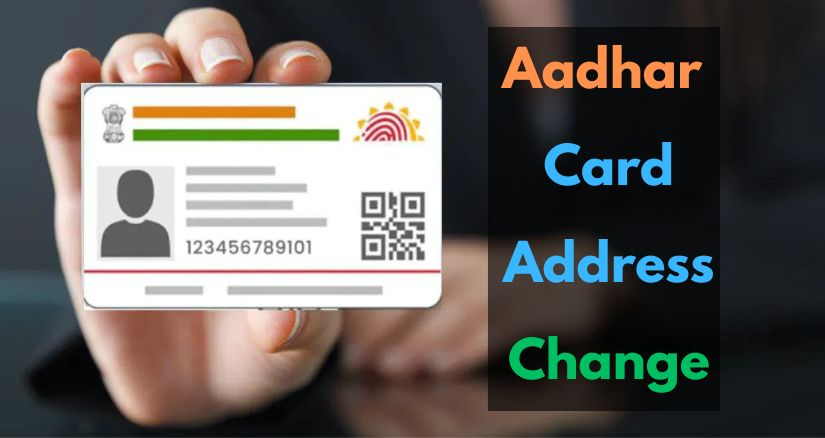
First open the internet browser on your computer. Go to the MyAadhaar website at myaadhaar.uidai.gov.in.
You will see a Login” button so click on it.
Now you have to put in your 12-digit Aadhaar card number. You have to be careful when you do this.
You also need to type in the security code that you see on the screen and then click on “Send OTP.”
MyAadhaar will send a code to your phone so you need to enter this code and click “Login” to get into your account.
When you are, inside your MyAadhaar account you need to find the part that says “Address Update” or “Update Aadhaar Online.”
Click on this part to start changing your details on MyAadhaar.
Step 2: Select the Update Option
Once inside your personalized dashboard, look for the service labeled “Address Update” or “Update Aadhaar Online.” Online.” Click on this option to proceed with your demographic modifications.
Step 3: Choose the Field to Update
The portal will present you with options such as name, date of birth, gender, or address. Select the field you need to modify (e.g., click on ‘Address’) and hit “Proceed to Update Aadhaar.” The screen will show your existing registered demographic information first.
Step 4: Enter the New Corrected Details
Scroll down to the ‘Details to be Updated’ section. Type in your updated address or corrected spelling. For address changes, ensure that you accurately select your PIN code, state, district, and post office from the provided drop-down menus so the database updates correctly.
Step 5: Upload Your Supporting Documents
Choose your valid document type from the drop-down list of acceptable proofs (e.g., a current electric bill or an active rent agreement). Upload a scanned copy or a high-quality photo of the document. Click “Next” to review a full preview of the changes you have made.
Step 6: Submit the Processing Fee
To confirm the submission of your update request, the UIDAI charges a nominal, non-refundable administrative fee of ₹50. Select your preferred digital payment method—UPI, credit card, debit card, or net banking—and complete the secure transaction.
Step 7: Download the Acknowledgment Slip
Upon a successful transaction, the portal generates a downloadable payment receipt containing your unique Update Request Number (URN). Save this receipt securely. This tracking number is exactly what you will use to check the progress of your application over the following few days.
How to Track the Status of Your Online Request
After finishing the process of how to update an Aadhaar card online, the typical processing window for approval ranges from 3 to 10 working days. You can track your update status easily:
- Return to the myaadhaar.uidai.gov.in portal homepage.
- Scroll down and click on “Check Enrollment & Update Status.”
- Enter the unique 14-digit URN from your acknowledgment slip and type the on-screen captcha.
- The system will display the exact status of your application (e.g., ‘Draft,’ ‘Verification Stage,’ or ‘Completed’).
Once the update status shows as completed, you can instantly download a digital copy of your updated card directly from the portal’s main dashboard.
Summary Checklist for a Smooth Process
To make sure your update goes through smoothly, keep this checklist in mind:
- Use Original Documents: Always scan original physical documents. Do not scan photocopies, as the UIDAI system often rejects them.
- Keep Documents Clear: The portal accepts uploaded digital files in JPEG, PNG, or PDF formats. Make sure your scanned file is clear, highly legible, and does not exceed 2 MB in size.
- Verify Captcha Input: CAPTCHAs are case-sensitive. Enter them exactly as displayed to avoid login timeouts.